
Telstra Smart Modem Gen 4 in Adelaide: Why Your Printer Will Not Connect
Band steering, Wi-Fi 7 and LAN IPv6 are on by default and break printers, TVs and smart devices. Here is what to turn off, and the order it has to be done in.
Your devices are not faulty
The Telstra Smart Modem Gen 4 ships with three features enabled that older and simpler devices cannot cope with.
Printers, smart TVs, speakers, cameras and smart plugs are the ones that suffer. Phones and laptops are usually fine, which is exactly why it looks like the device has failed rather than the network. Turning the three settings off takes about ten minutes and will not slow your internet down in any way you notice.
Band steering
Gives both radio bands one name and moves devices between them. Most printers only have a 2.4 GHz radio, so they get pushed onto a band they cannot use and vanish.
Wi-Fi 7
The newest standard, on by default. Older hardware often fails to negotiate down to what it supports.
LAN IPv6
Printer discovery was largely built for the older addressing scheme and can behave inconsistently with both running.
The giveaway
Phones work perfectly and only the simple devices struggle. A real internet fault takes everything down at once.
Before you start
Get onto the modem’s network, then open http://192.168.0.1 in a browser and sign in with the password on the sticker.
Change one thing at a time and re-test the device after each one. If you change all three at once and it works, you will never know which mattered — and you may have given up speed you did not need to. Menu labels shift between firmware versions, so go by the setting names rather than the exact path if something does not match.
Step 1 — Turn off LAN IPv6
Settings › LAN, then the LAN / DHCP IPv6 section. Switch Enable to Off and apply.

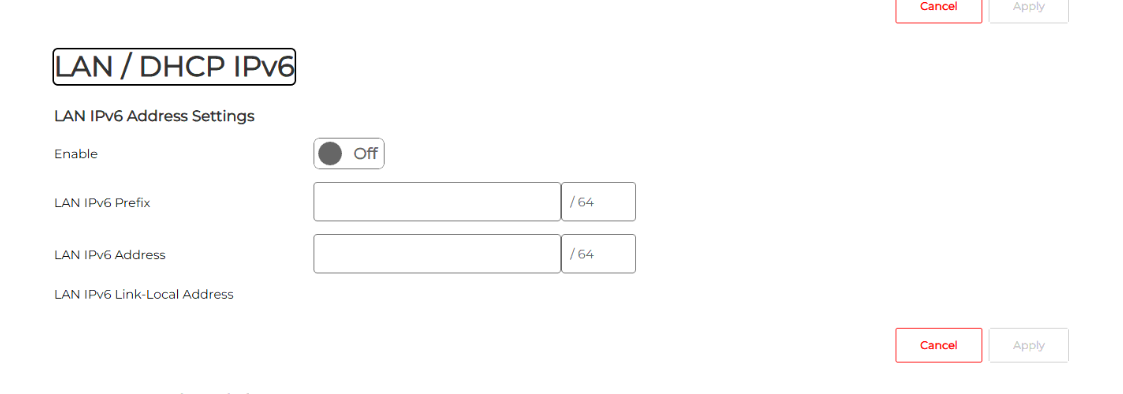
This only affects IPv6 inside your home. Your internet connection is unchanged and nothing about your speed changes. Re-test the device now — if it works, stop here.
Step 2 — Drop Wi-Fi 7 back to Wi-Fi 6
Wi-Fi Settings › Advanced. Set Wireless Mode to the Wi-Fi 6 option on both the 2.4 GHz and 5 GHz tabs.
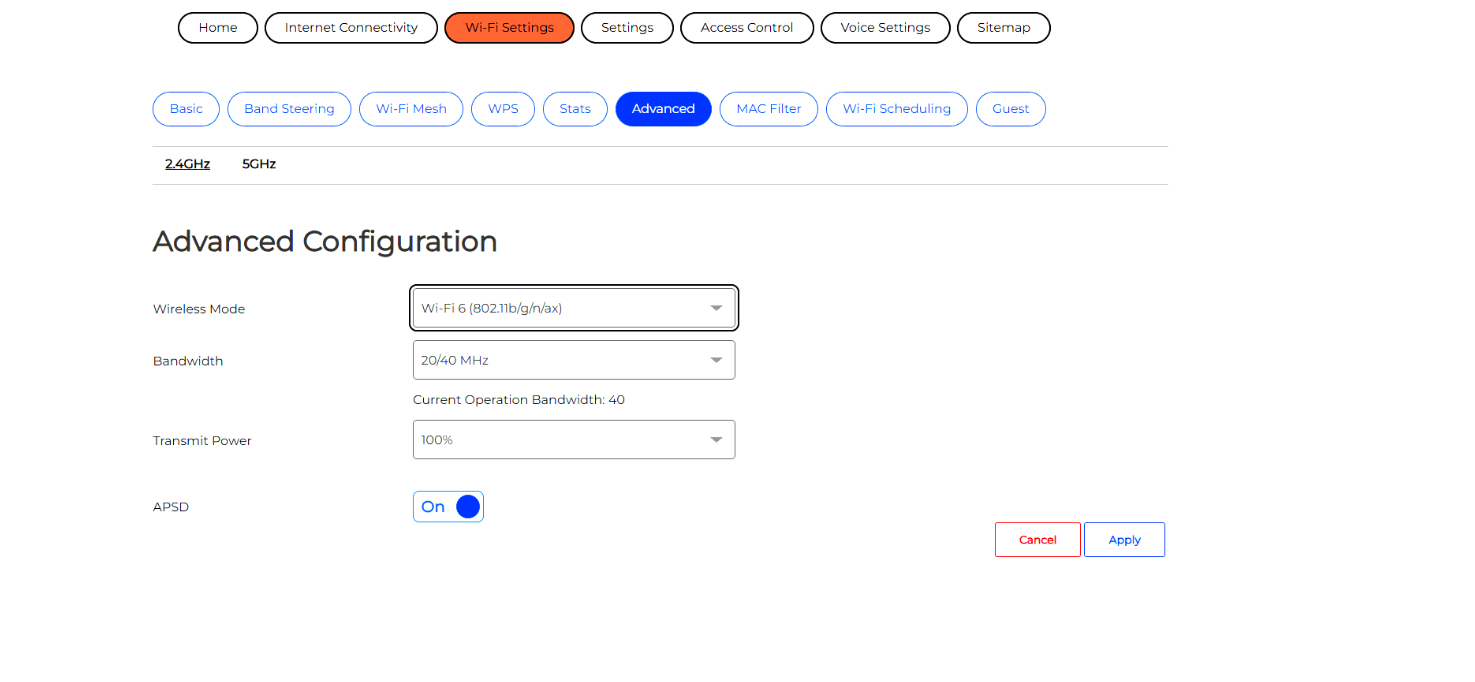
Do this before step 3 — it is not optional. The modem will not let you change Band Steering while Wi-Fi 7 is enabled. Telstra’s own page says so: “When Wi-Fi 7 is enabled BandSteering cannot be switched.” If the Band Steering toggle does nothing, this is why. It is what makes most people give up.
Step 3 — Turn off band steering
Wi-Fi Settings › Band Steering. Switch Enable to Off and apply. This is the change that fixes most printer problems.
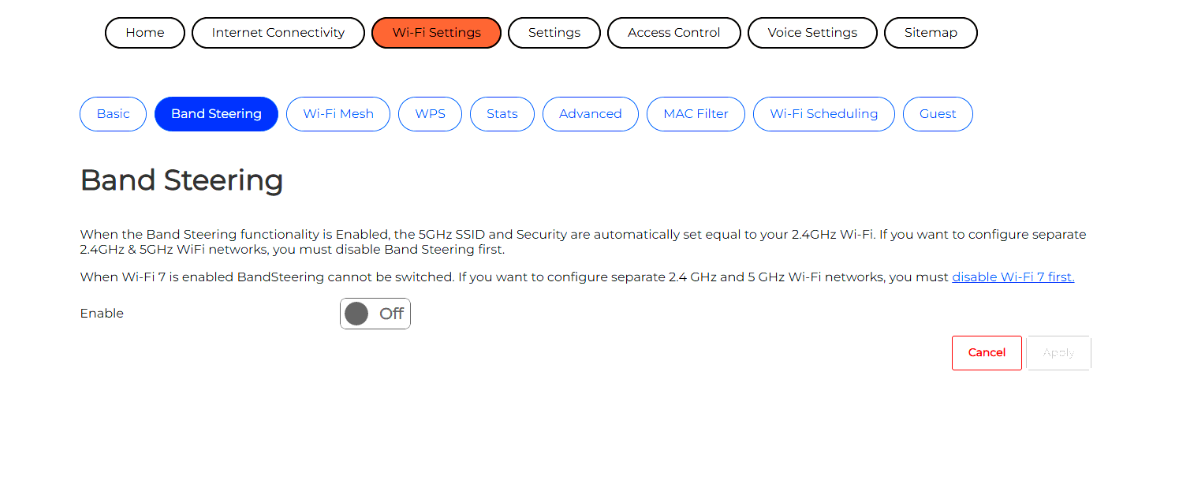
Your 2.4 GHz and 5 GHz networks now have separate names, so you will see two entries in the Wi-Fi list instead of one. That is the point: you can join the printer to 2.4 GHz deliberately, by name, and it will stay there. Put phones, laptops and the TV on 5 GHz for speed and everything simple on 2.4 GHz.
Reconnecting the device
Changing the modem is not enough on its own — the device is still holding the old network details.
1. Power-cycle it
Off at the wall for ten seconds, then back on. Not a menu restart.
2. Forget the old network
Remove the saved Wi-Fi on the printer, then join the 2.4 GHz one by name.
3. Re-run discovery
Add the printer fresh on the computer rather than reusing the old entry, which may point at an address that no longer exists.
4. Print something
An actual test page, not a preview.
Common questions
Not in any way you will notice. Your speed is set by your plan and the line, and none of these settings touch that. Wi-Fi 6 is still fast enough to carry the quickest residential connections available.
Because Wi-Fi 7 is still on. The modem locks Band Steering while Wi-Fi 7 is enabled. Set Wireless Mode to Wi-Fi 6 on both bands first, then come back.
That is band steering being off, and it is what you want. Each band has its own name so you can put every device on the right one deliberately.
Almost certainly not. Plenty of brand-new printers are 2.4 GHz only, because range matters more than speed for printing. The problem is the modem assuming every device handles the newest features.
Yes. It is usually a remote job: $125 per hour remote, $205 per hour on site. We change the settings, rejoin your devices and test a real print before we finish.
Book a Adelaide technician
$205/hr on site, $125/hr remote, no call-out fee and no fix, no fee.
Book OnlineService scope: we diagnose hardware faults and handle batteries, software, data, networking and setup. Physical screen, keyboard, charging-port and hinge replacement we refer to a specialist. Pricing shown is our own published rate, current as at August 2026. Any parts are quoted separately for your approval.